SVG to PNG Converter
Convert SVG icons, logos, and illustrations into crisp PNG files with custom size, scale, and transparent background controls.
Preview
PNG Export
Final PNG size: 512 x 512px. Artwork keeps its SVG aspect ratio.
Transparent PNG
Alpha channel preserved
Try these image converter tools
Convert, clean up, and prepare visual assets for slides, documents, websites, and shared design libraries.
How to convert SVG to PNG
Use SlideImg to turn vector artwork into crisp PNG files in a few focused steps.
Upload SVG files
Drop one SVG or select a batch of icons, logos, illustrations, or slide graphics.
Set output options
Choose exact pixels, scale the export, and pick transparent or solid background.
Download PNG files
Save one PNG instantly or download a ZIP when multiple SVG files are loaded.
Simple conversion
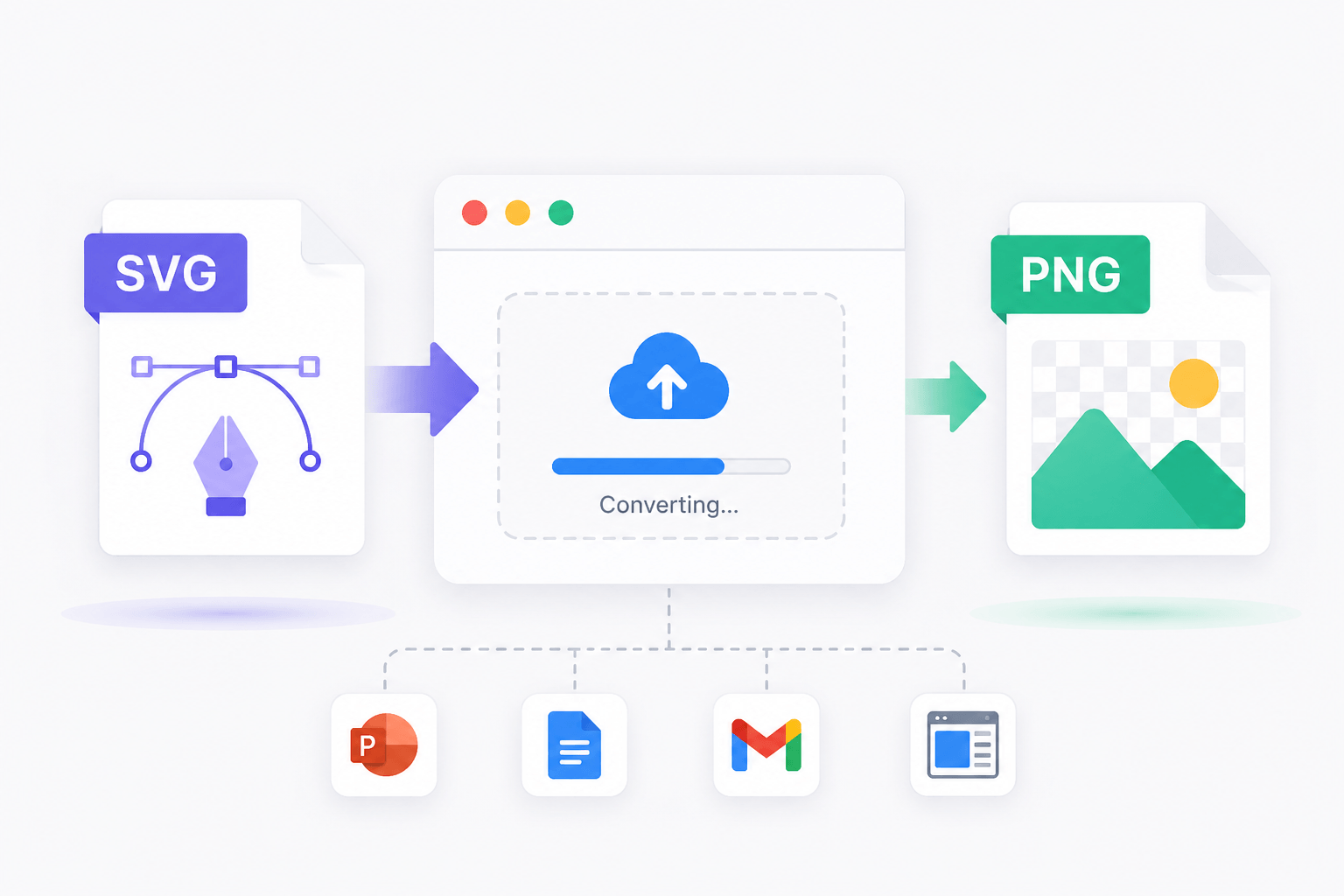
Convert SVG to PNG without opening a design app
SVG files are perfect for scalable artwork, but many slide, document, email, and publishing workflows still expect PNG. SlideImg converts the vector file in your browser and gives you a crisp raster image with the size you need.
Batch workflow
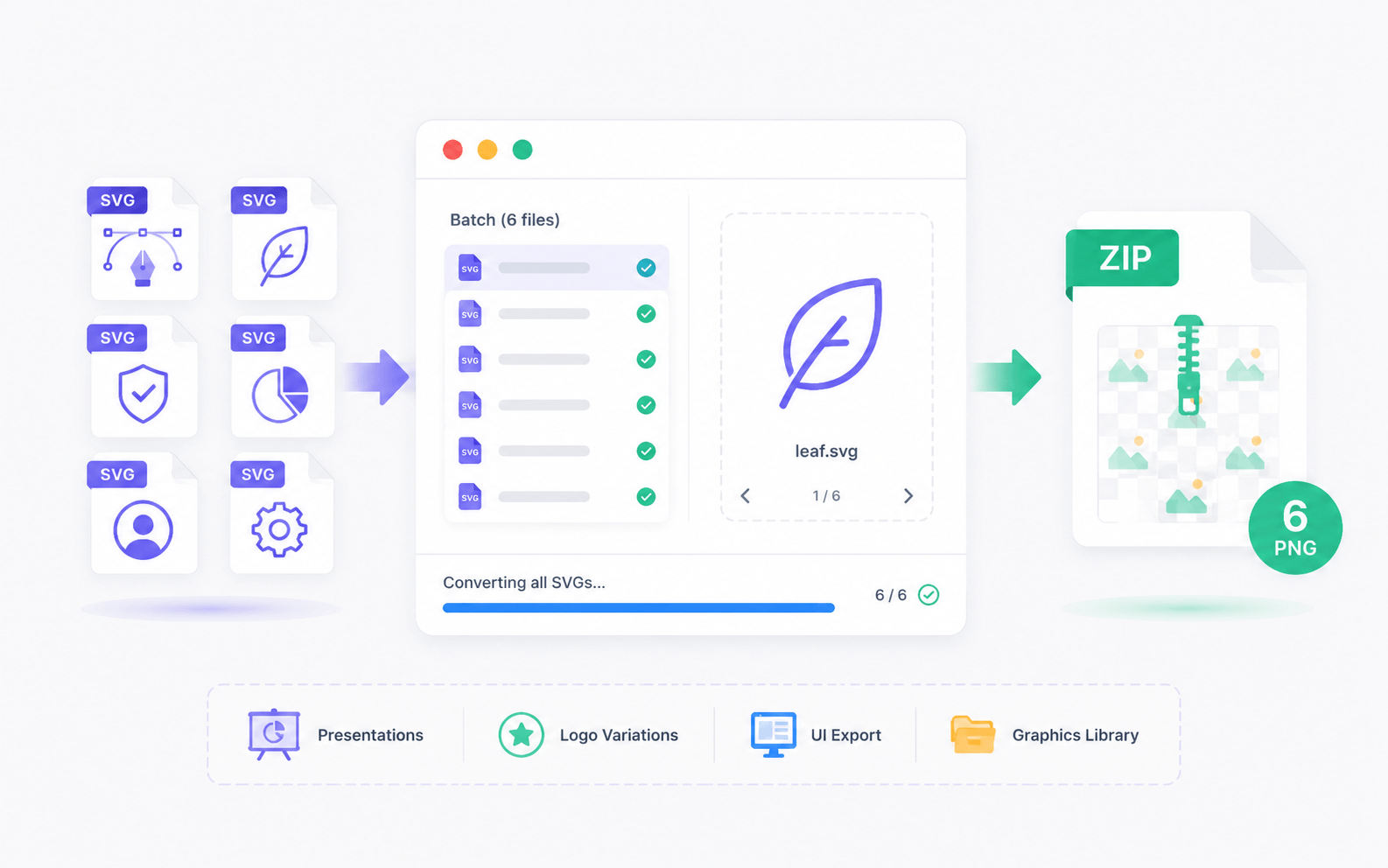
Prepare whole icon sets in one pass
Drop multiple SVG files, check the selected preview, and export the whole batch as a ZIP. It is useful for presentation icon packs, logo variations, UI exports, and reusable graphics libraries.
Presentation-ready output
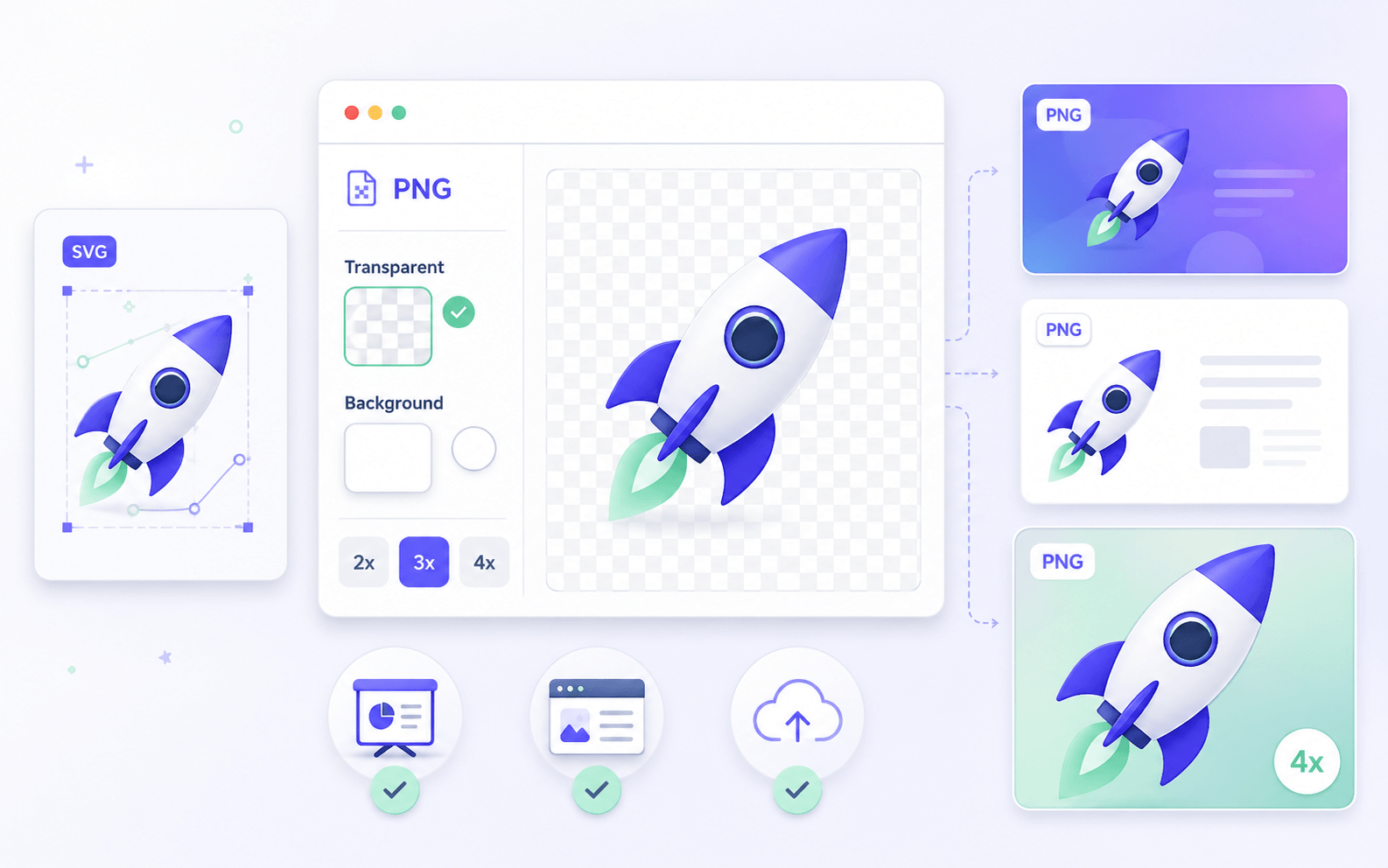
Control transparency, background, and scale
Keep PNG transparency for colored slides, add a solid background for documents, or scale exports to 2x, 3x, or 4x for sharper placement in decks, websites, and shared assets.
How to convert SVG to PNG in SlideImg
Open the converter
Use the upload area at the top of this page to start a browser-side SVG to PNG export.
Upload one or many SVG files
Select files from your device or drag them into the preview panel.
Choose PNG settings
Set width, height, export scale, and background mode before downloading.
Export PNG or ZIP
Download a single PNG, or get a ZIP package when you convert several SVG files.
FAQ
Frequently Asked Questions
Quick answers about SVG files, PNG export quality, transparency, and batch conversion.
What is the difference between SVG and PNG?+
SVG is a vector format that stays sharp at any size. PNG is a raster image format with fixed pixels, broad app support, and optional transparency. Converting SVG to PNG is useful when a tool does not support SVG or when you need a fixed-size image.
Will SVG to PNG conversion keep transparency?+
Yes. Transparent export is enabled by default. You can also choose a solid background color before downloading the PNG.
Can I choose the PNG size?+
Yes. Use the detected SVG dimensions, enter custom width and height values, or apply a scale preset for higher-resolution PNG output.
Can I batch convert SVG files to PNG?+
Yes. Select multiple SVG files or drop them together. The converter exports a ZIP containing all PNG files when more than one SVG is loaded.
Does converting SVG to PNG reduce quality?+
PNG is raster, so it has a fixed pixel size after export. Choose a larger size or a 2x, 3x, or 4x scale when you need sharper results.
Can I use the PNG in PowerPoint or Google Slides?+
Yes. The exported PNG is designed for presentation workflows and can be placed into PowerPoint, Keynote, Google Slides, documents, and design tools.
Are my SVG files uploaded to a server?+
The current converter renders SVG files in your browser. That keeps quick presentation asset conversion lightweight and avoids a separate upload step.